Check a driver
Send a driver a link on their phone so they can prove who they are before they pick up your freight.
Steps
Each picture has a red box around what to click. Words in bold are the names you will see on the screen.
Step 1: Open the Drivers page and start a check
Click Drivers in the left menu, then click Check a driver.
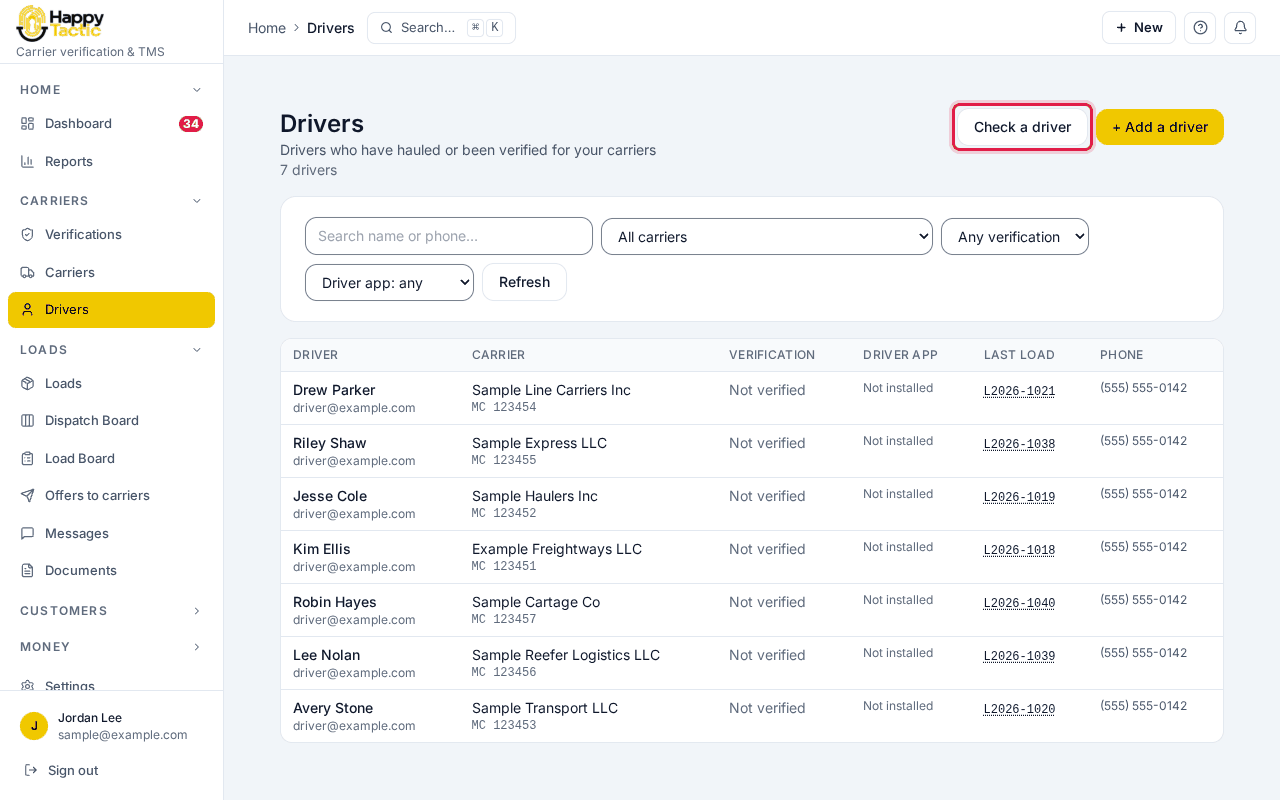
You should see: A small window called Check a driver opens.
Step 2: Pick the carrier, or leave it blank
If the driver works for one of your carriers, start typing the carrier’s name or MC number. Leave Carrier blank for a driver in your own fleet.
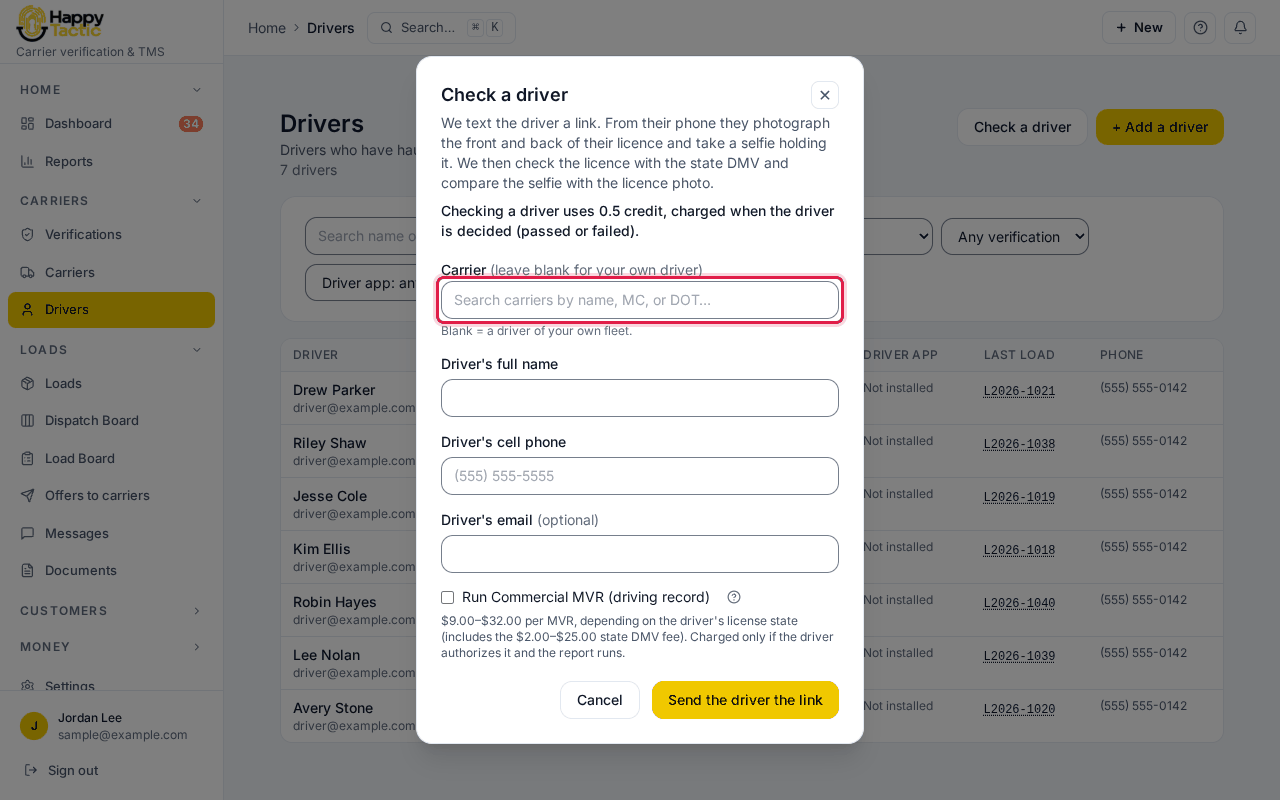
You should see: The window explains what happens: we text the driver a link, they photograph their license and take a selfie holding it, and we check it with the state.
Step 3: Enter the driver’s name and cell phone
Fill in Driver’s full name and Driver’s cell phone. The email is optional. Tick Run Commercial MVR (driving record) only if you want that extra report; the price is shown under it.
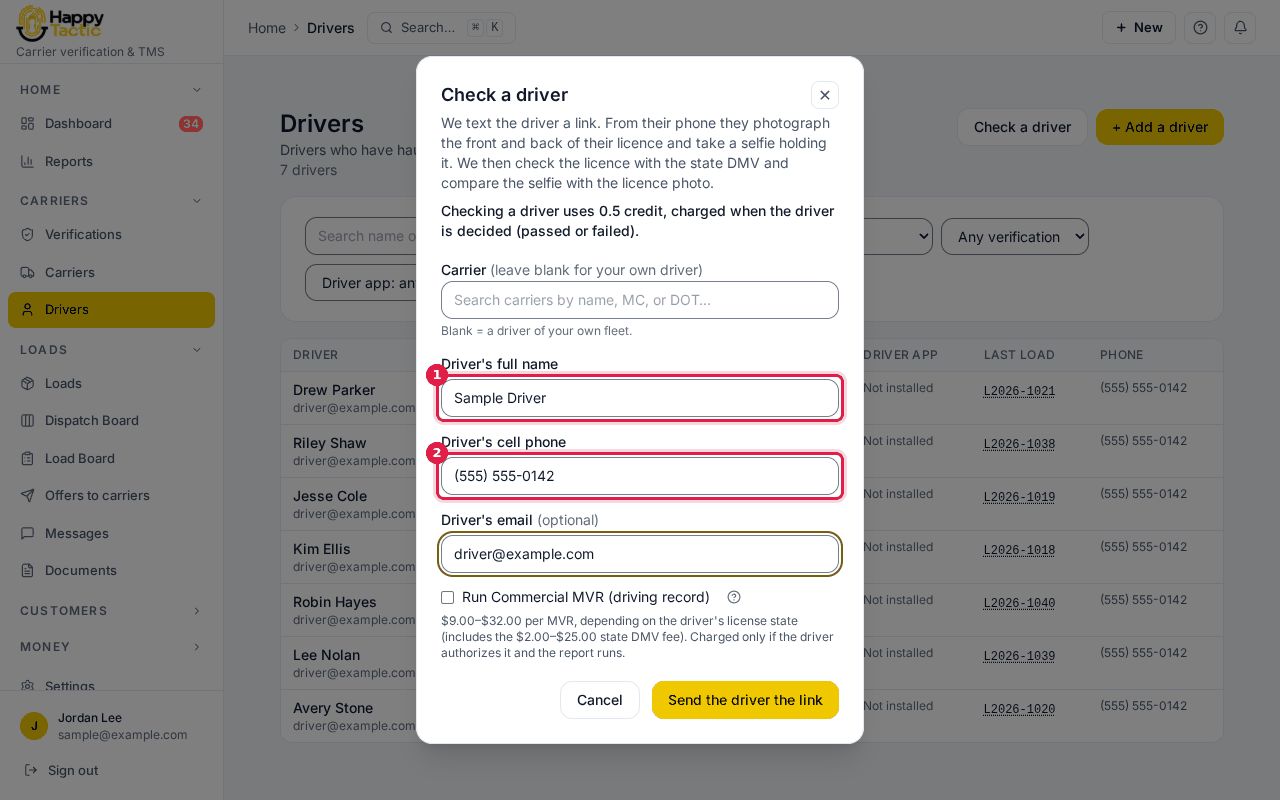
The name, phone and email here are made up. Step 4: Send the link
Click Send the driver the link.
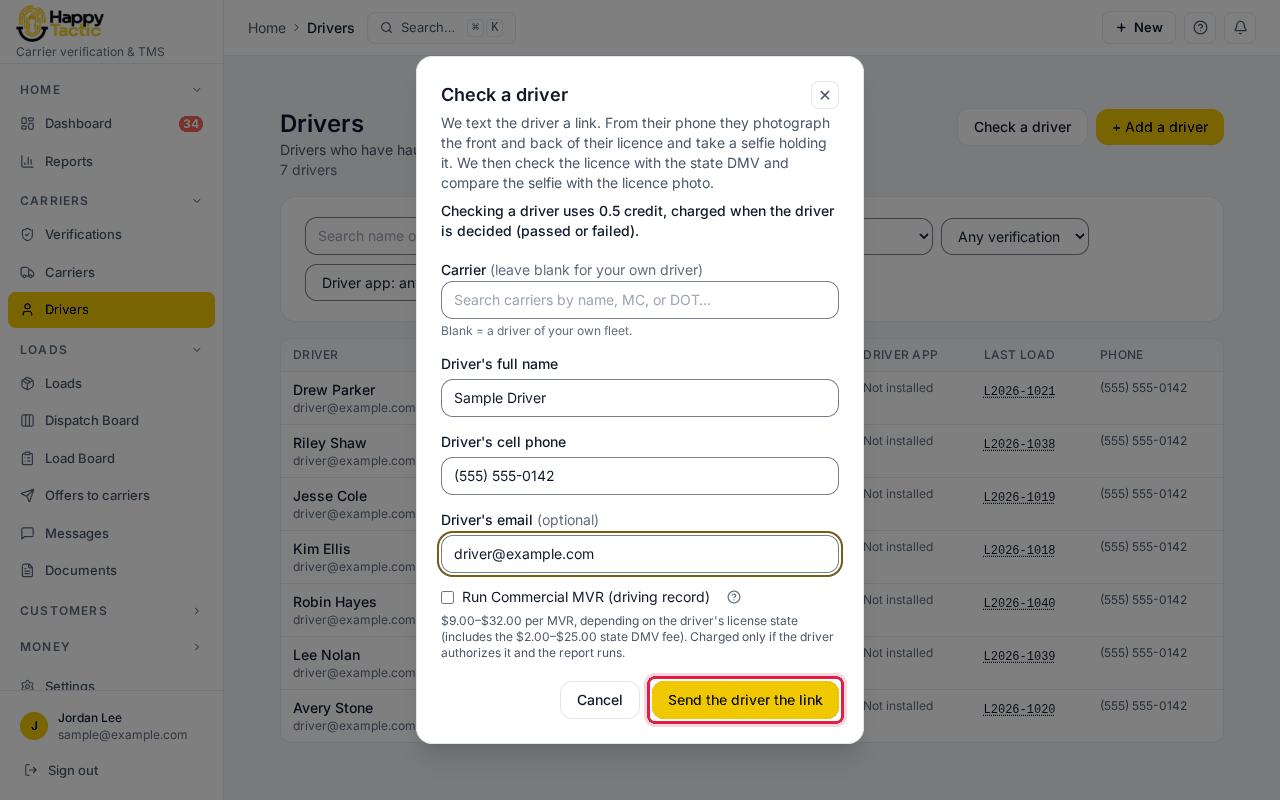
You should see: The check page opens and says In progress.
Step 5: Wait for the driver to finish
The page shows “Waiting for the driver to send their photos” and when the link runs out. You do not have to do anything. If the driver loses the text, click Send the link again. To stop the check, click Cancel check.
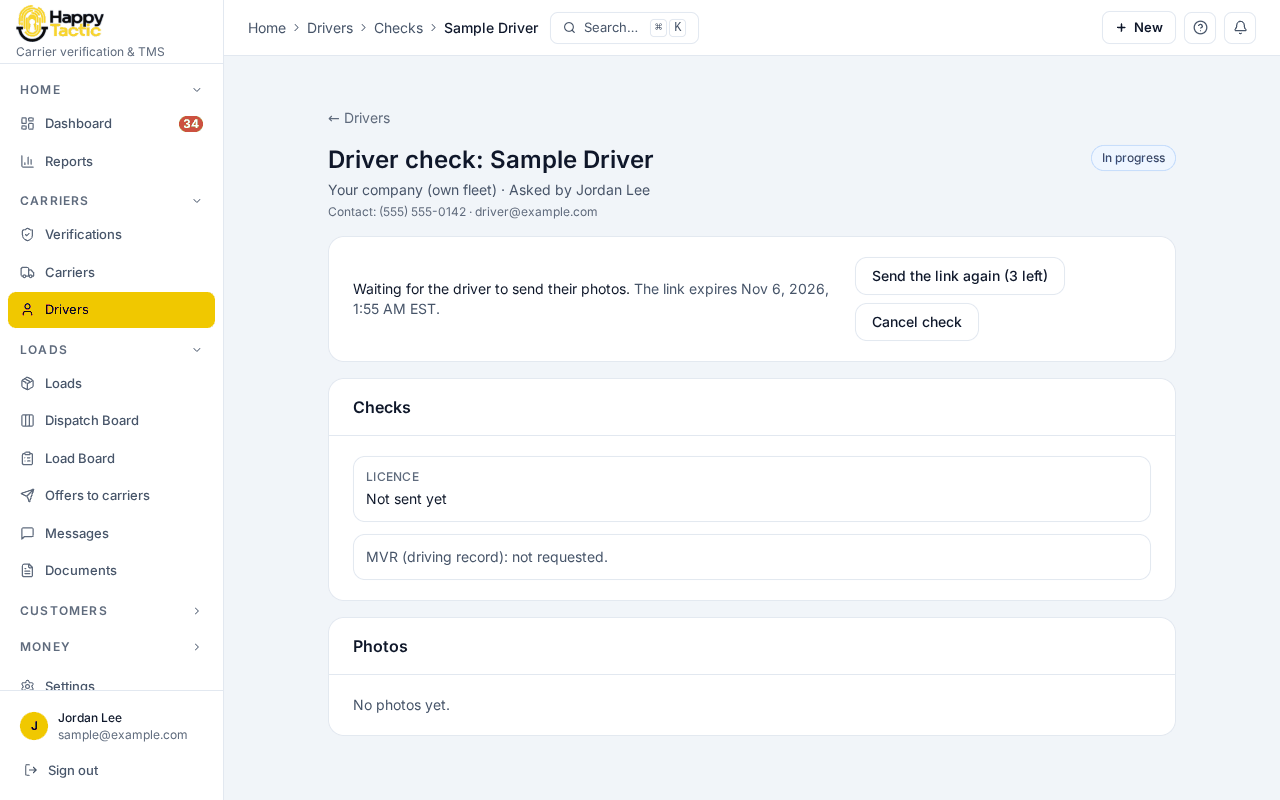
You should see: When the driver finishes on their phone, the same page fills in with the license check and photos. We could not show that last part: our test site never receives a real driver’s photos.
If something goes wrong
- The driver says they never got the text.
- Check the phone number on the check page, then click Send the link again. You can resend three times.
- I typed the wrong phone number.
- Click Cancel check and start a new one with the right number.
- The link has expired.
- Links last about three days. Start a new check.
- The window says I am out of credits.
- Add credits under Settings, then Billing.
Still stuck? Open Help & Support in the left menu of the app and send us a message.
What next
These guides usually come next: