Track the load
Get the driver’s location on the road, see where the load is, and log check calls.
Steps
Each picture has a red box around what to click. Words in bold are the names you will see on the screen.
Step 1: Find the tracking box
On the load page click Carrier. The box called Customer tracking & driver check-in has two buttons.
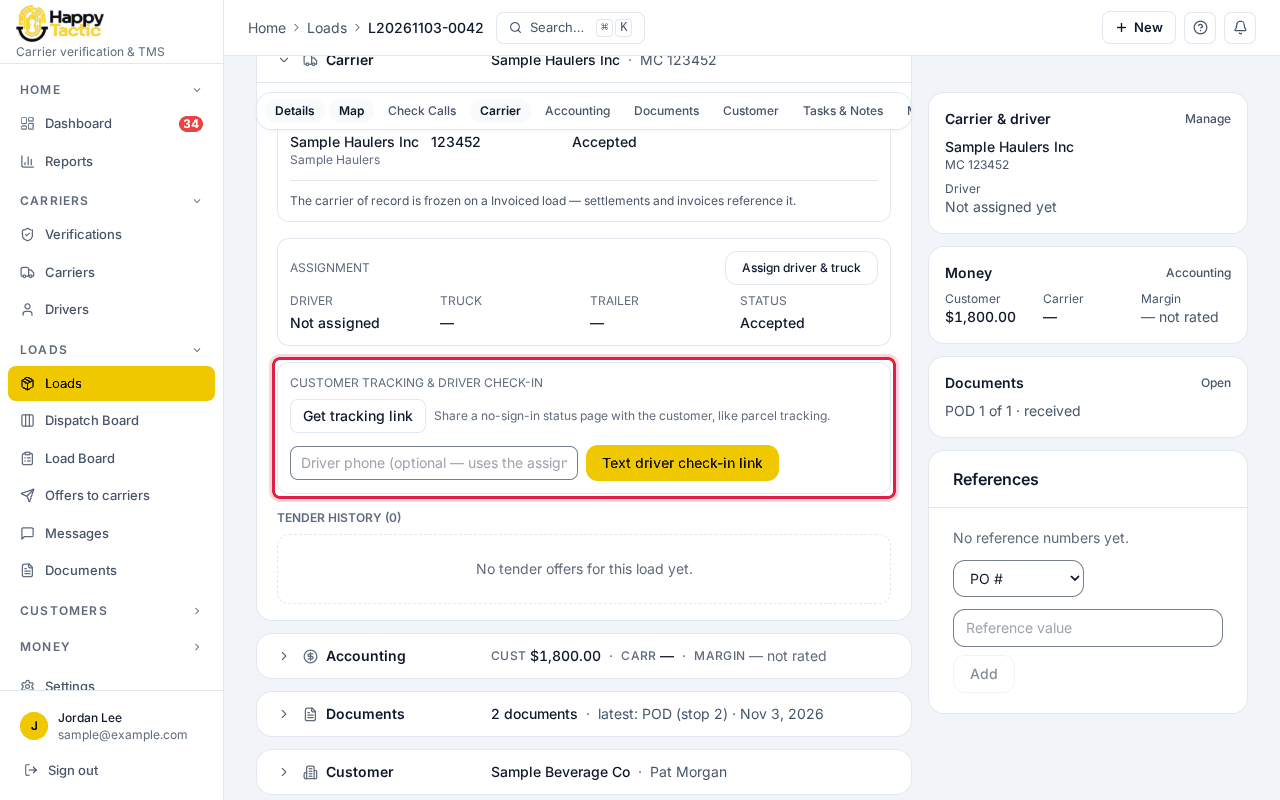
You should see: Get tracking link makes a page your customer can open without signing in, like a parcel tracker. Text driver check-in link texts the driver.
Step 2: Type the driver’s phone
If the box beside the button is empty, type the driver’s cell phone. Then click Text driver check-in link.
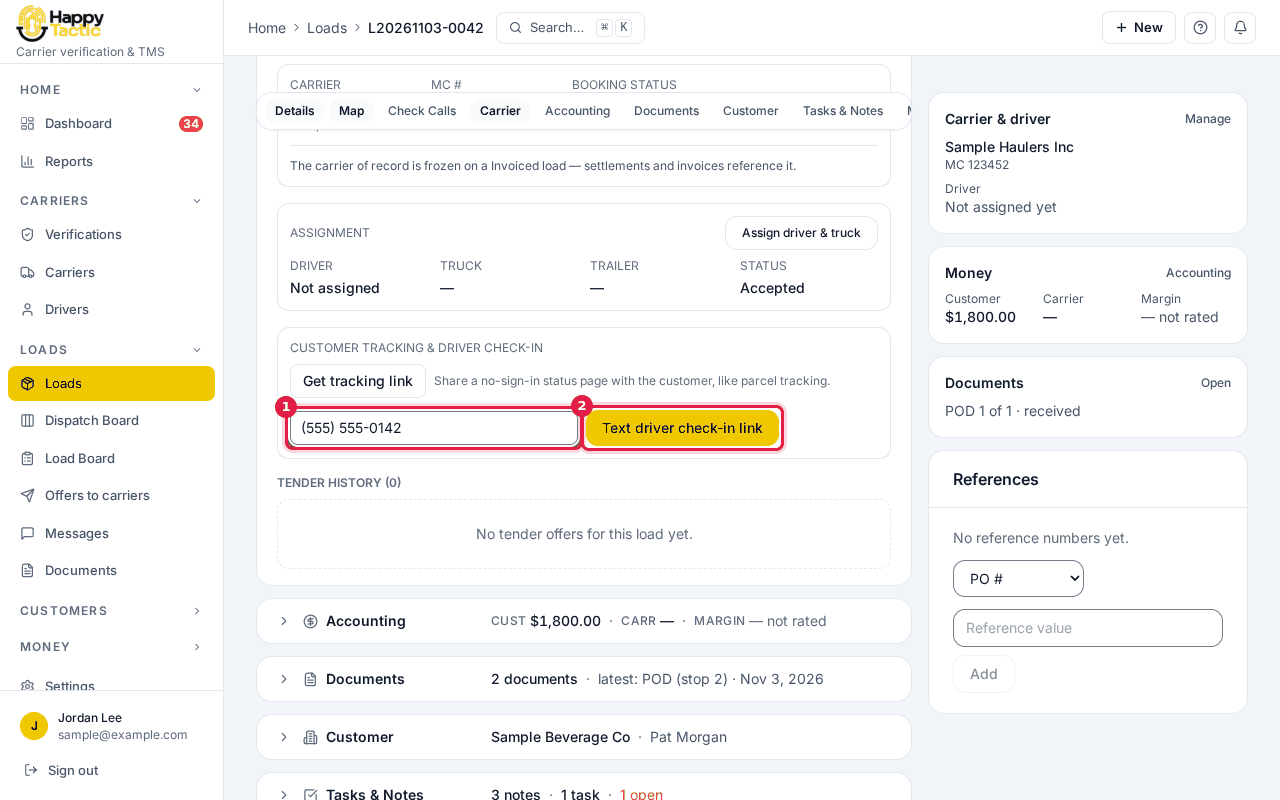
The phone number is made up. Step 3: Check the confirmation
A green message says the link was texted and shows the last digits of the phone.
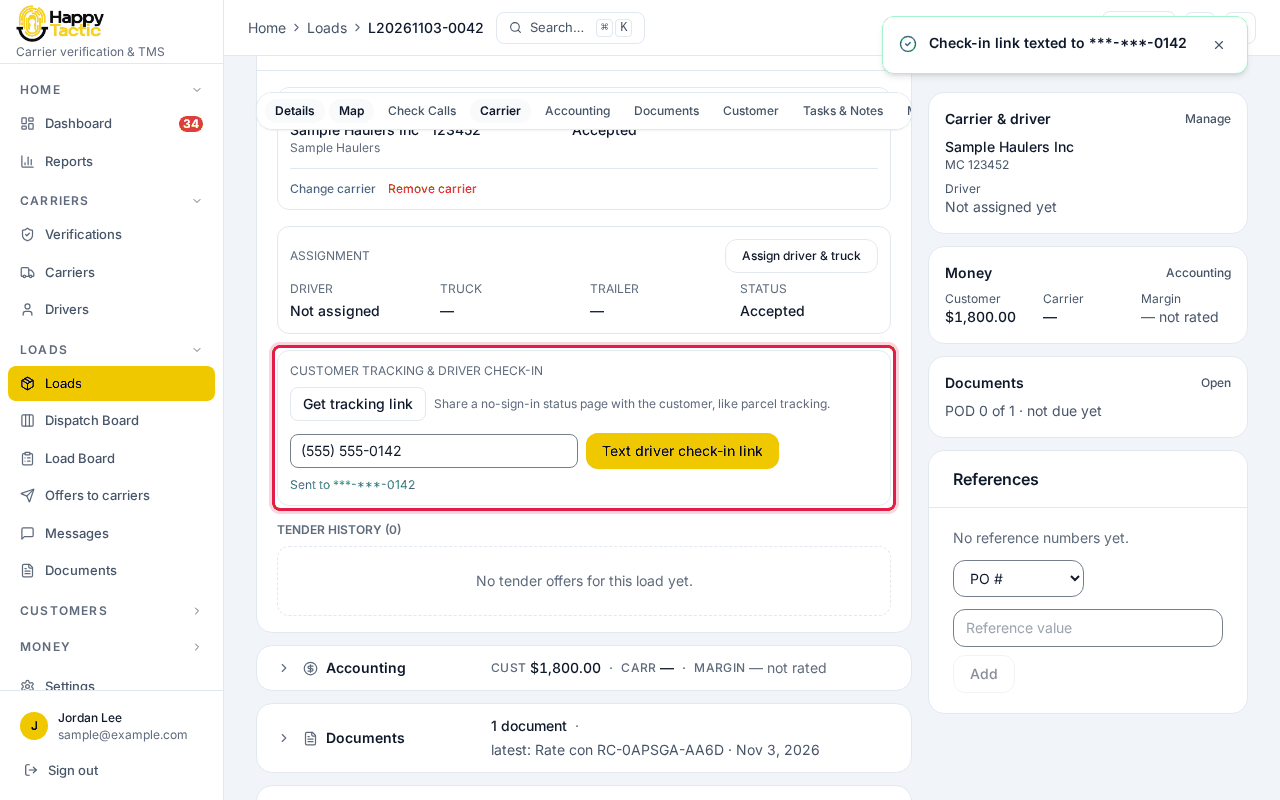
You should see: The driver opens the link on their phone (or the Happy Tactic Driver app) and their phone shares its location until the load is delivered.
Step 4: Look at the tracking chip
At the top of the load page, a small label next to the status tells you if tracking is working.

You should see: Not started means no location has come in yet. When the driver is sharing it changes to say so, and it tells you if there has been no recent ping.
Step 5: Open the map
Click Map in the bar under the title.
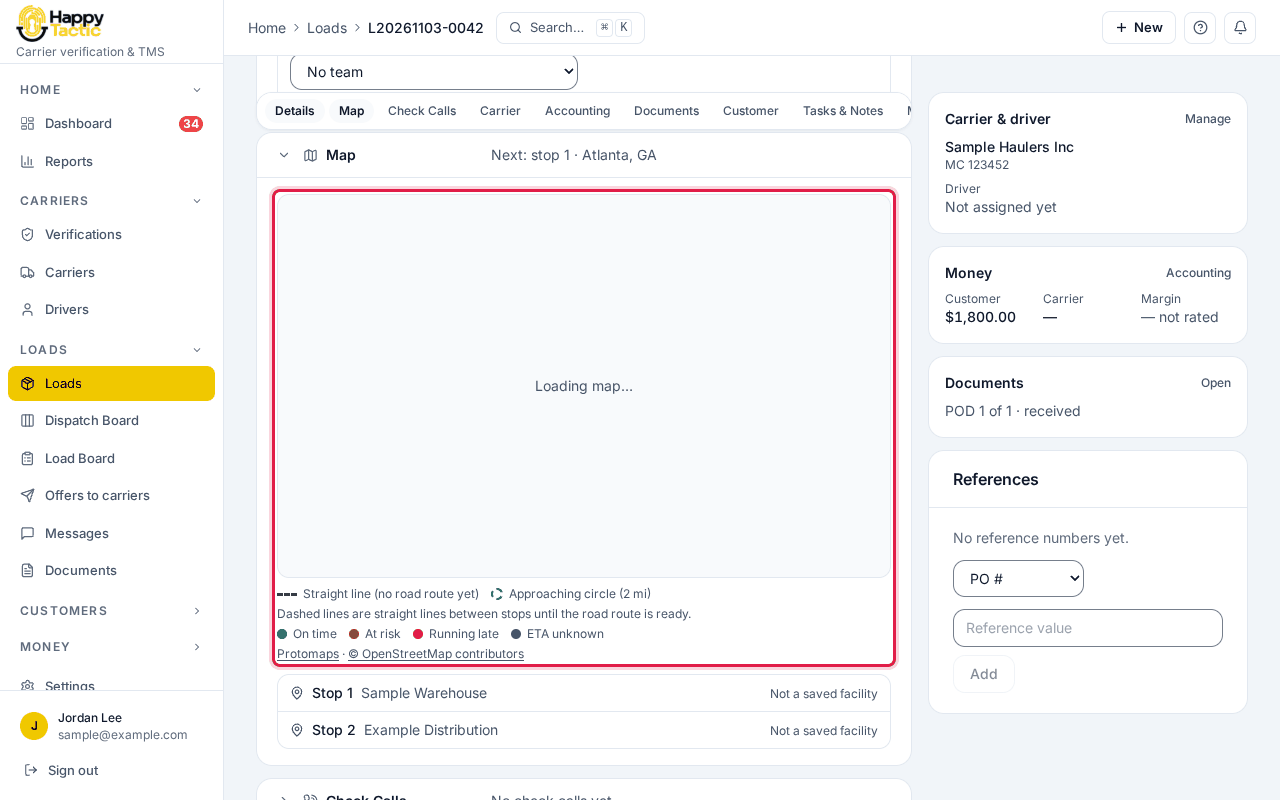
On our test site the background map picture did not draw, so this screenshot only shows the legend and stops. On your screen the map shows the route, the stops and the driver’s last known spot. You should see: If it says “Nothing to map yet”, the stop addresses need fixing in the Details section.
Step 6: Log a check call
Open Check Calls. Use the buttons under each stop (Arrived, Loaded, Departed) as the driver reports in, or click + Log a check-call to write a note.
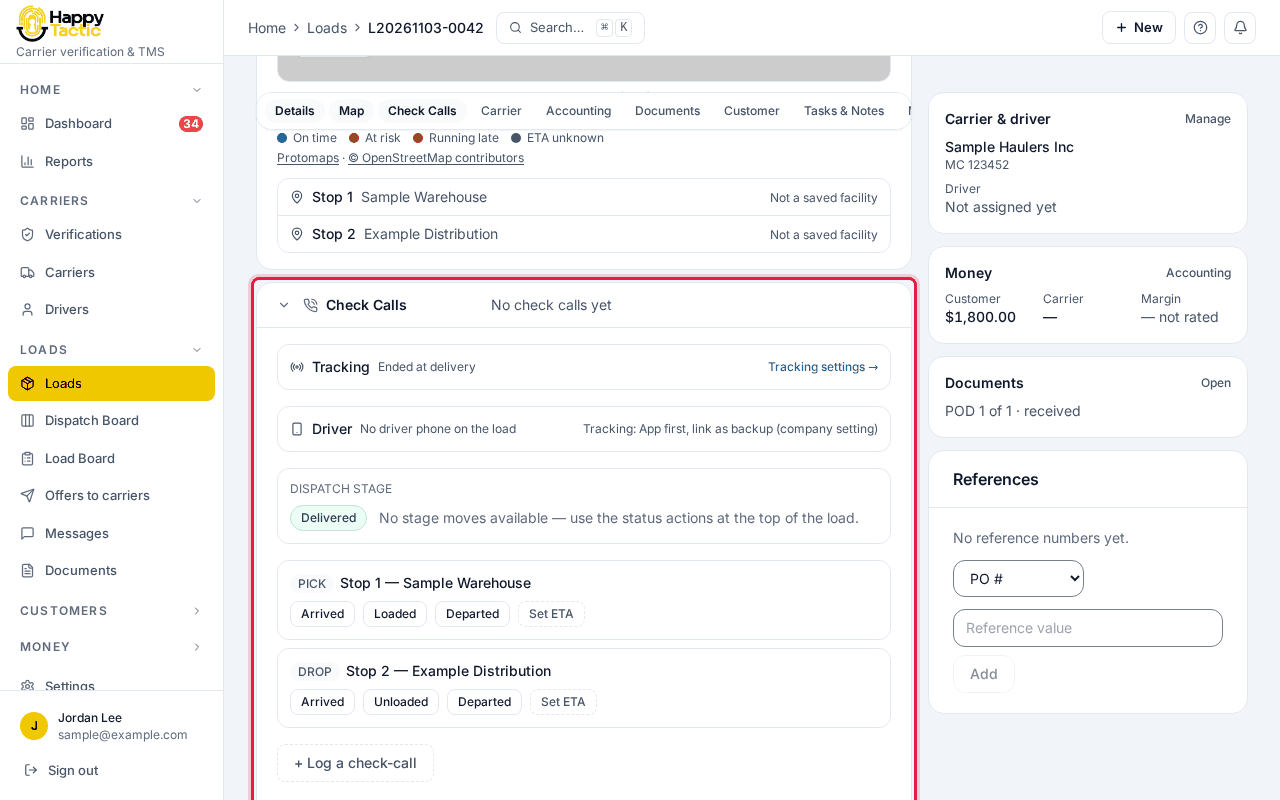
You should see: The customer’s tracking page shows each update.
Step 7: What a load that is moving looks like
On a load in transit, the Check Calls bar also tells you when nothing has come in.
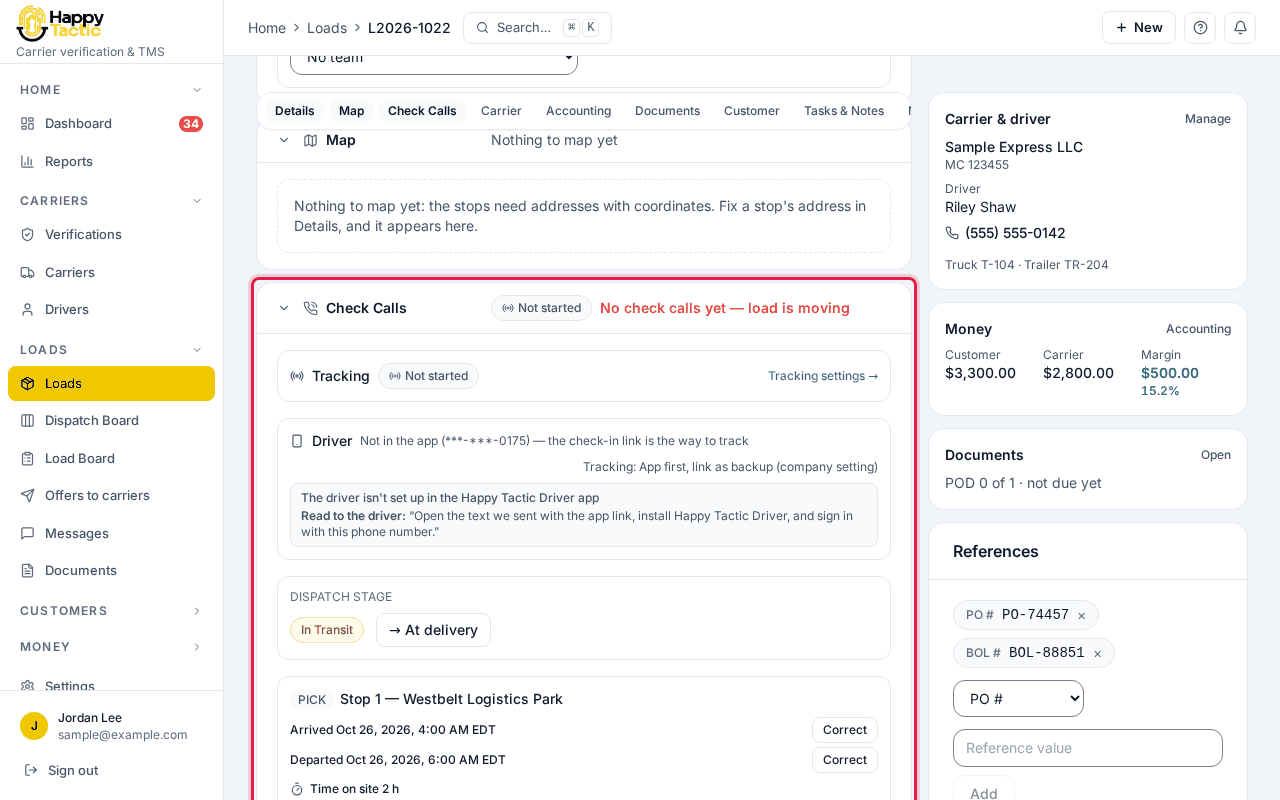
You should see: The red words tell you to call the driver or send the check-in link again.
If something goes wrong
- It says “No driver phone on the load”.
- Type the driver’s phone in the box next to Text driver check-in link, or add it to the driver’s record.
- The label still says Not started after the driver got the link.
- The driver has not opened it yet. Call them and ask them to tap the link.
- Tracking says it ended at delivery.
- That is normal once the load is delivered.
Still stuck? Open Help & Support in the left menu of the app and send us a message.
What next
These guides usually come next: