Set up automatic steps
Choose which jobs Happy Tactic does for you, like making invoice drafts and sending reminders.
Steps
Each picture has a red box around what to click. Words in bold are the names you will see on the screen.
Step 1: Open Settings and Workflow
Click Settings in the left menu, then the Workflow tab.
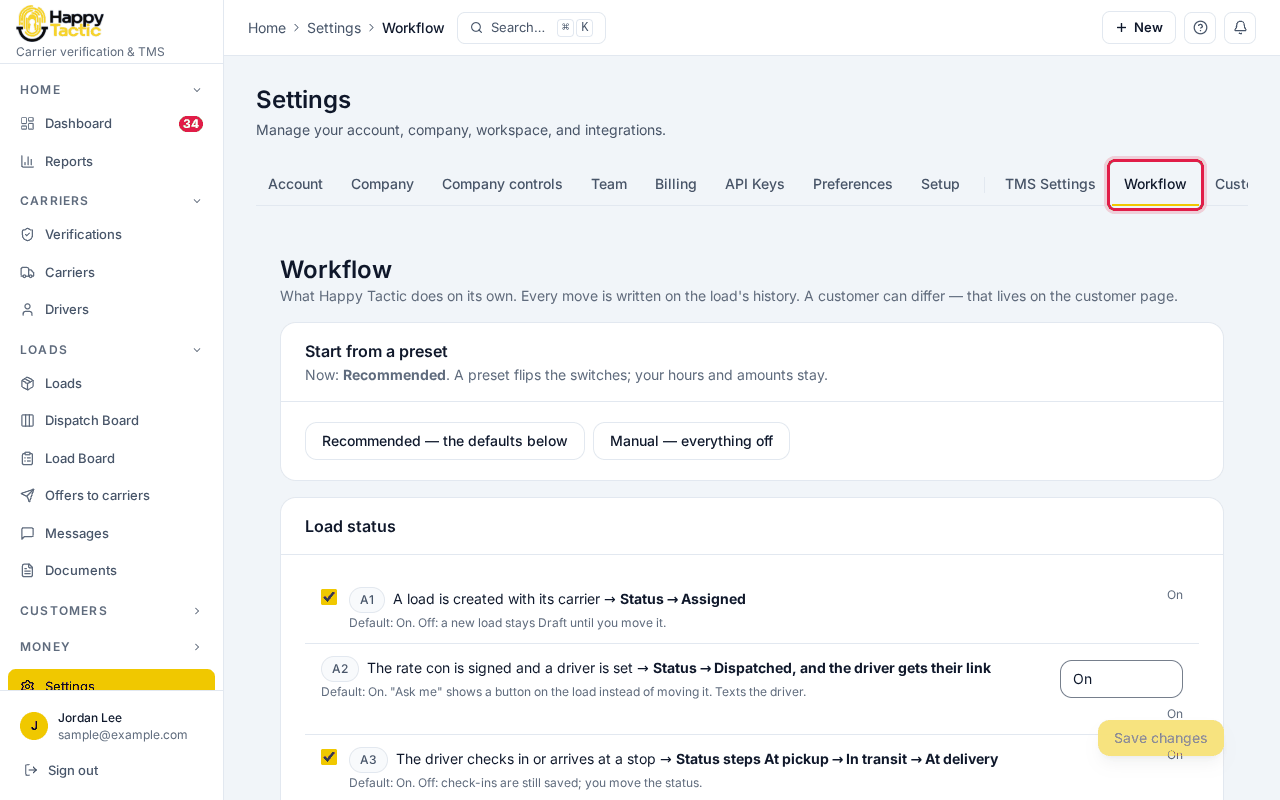
You should see: The page says what Happy Tactic does on its own. Every move is written on the load’s history.
Step 2: Start from a preset
Click Recommended to turn on the usual helpers, or Manual to do everything yourself. You can change single switches afterward.
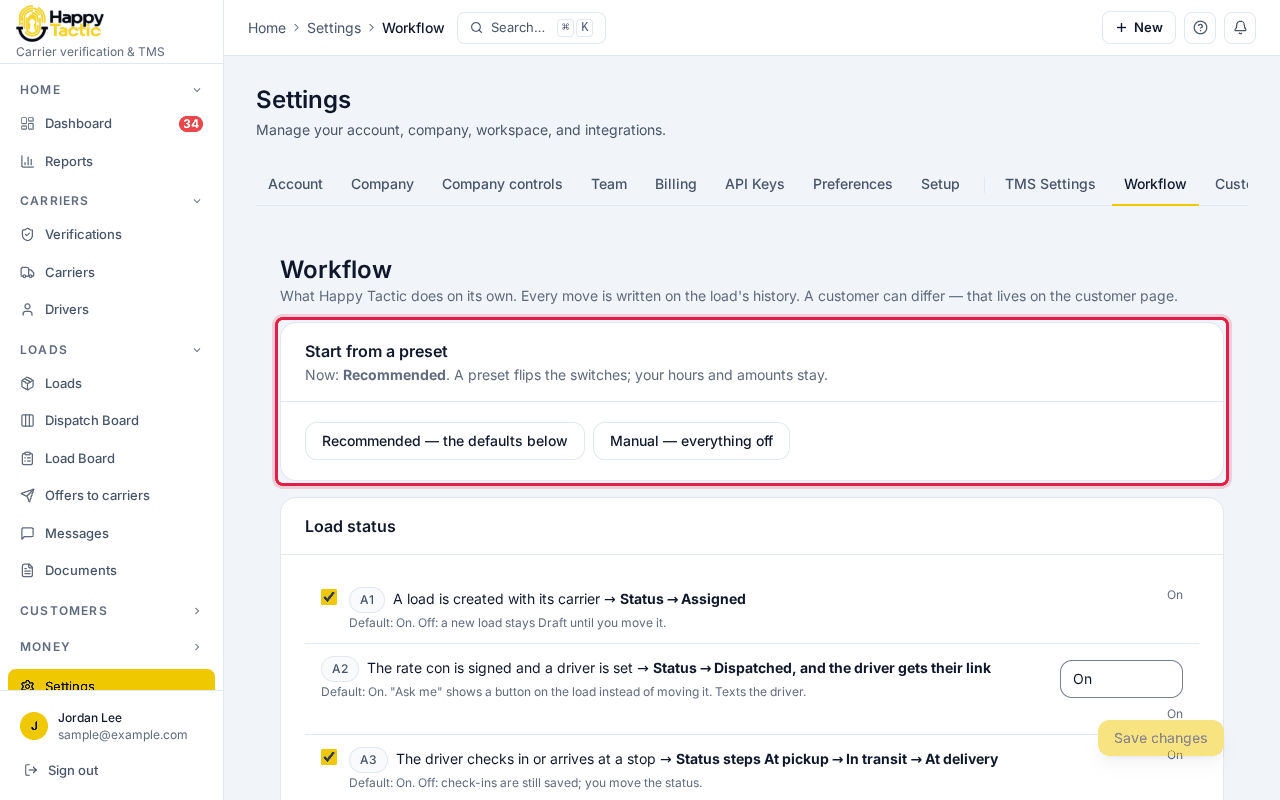
You should see: The line above the buttons shows which preset you are on.
Step 3: Choose about invoice drafts
Under Invoice defaults, tick Create the invoice draft when the paperwork is uploaded if you want a draft made when the POD arrives. Nothing is sent without you unless you switch that on separately.
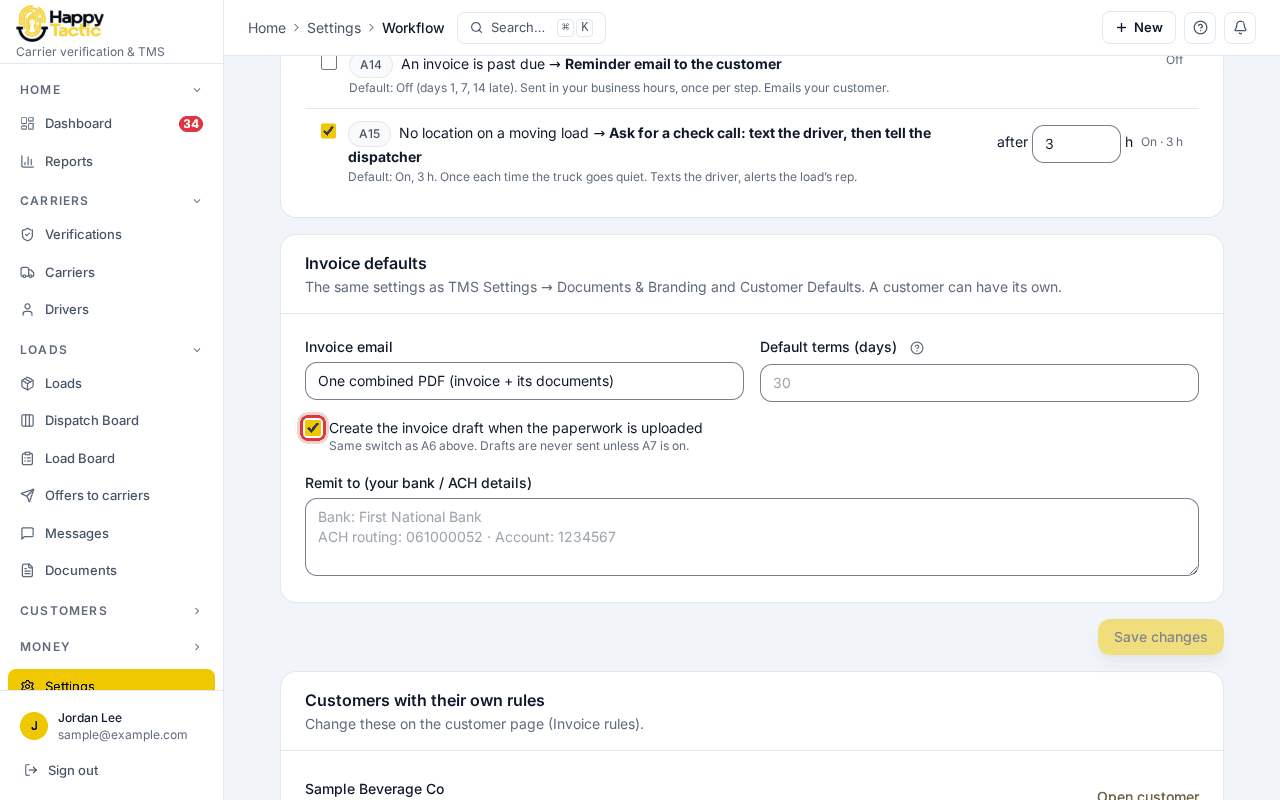
Step 4: Choose about dispatch and reminders
In Load status, each row is one helper with an on/off box. The one beside the rate con line lets you choose On, Ask me or Off for moving a load to Dispatched. Scroll down for the reminders.
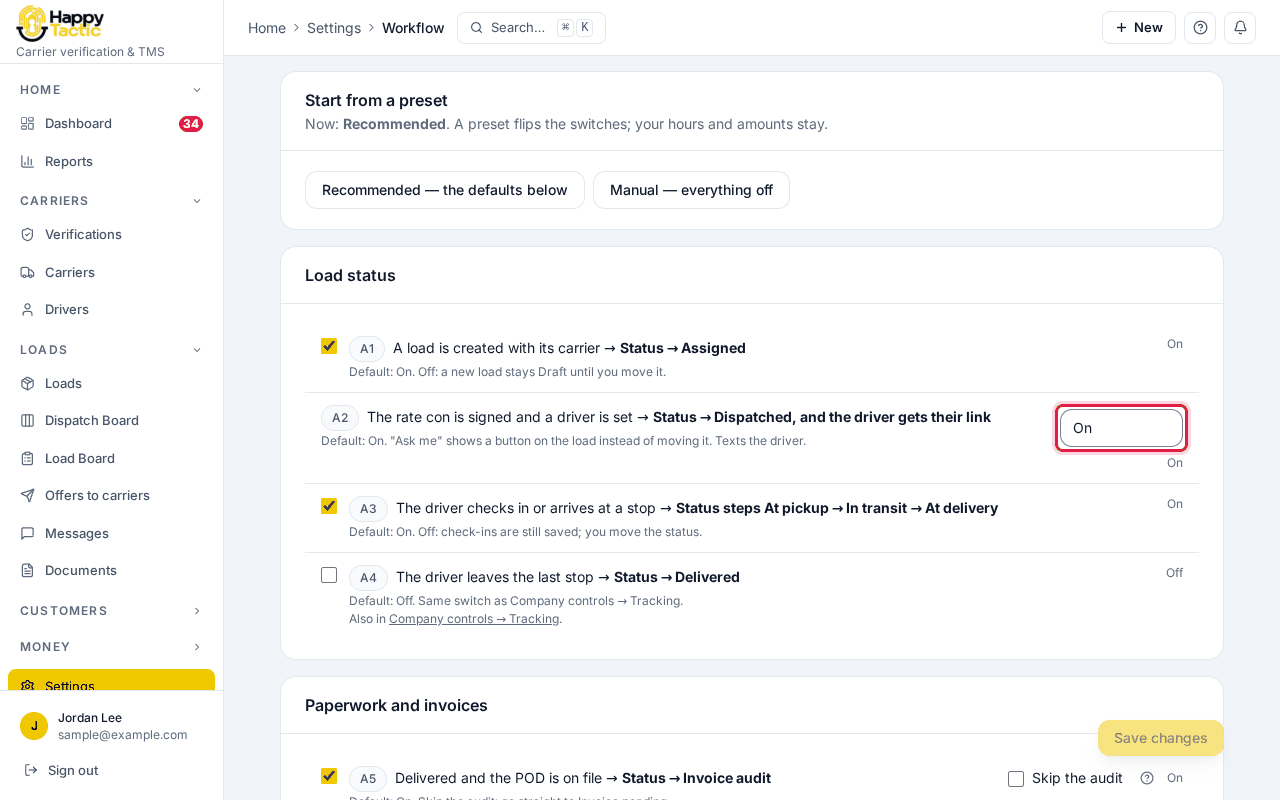
You should see: Ask me shows a button on the load instead of moving it for you.
Step 5: Save
When you change something, Save changes turns solid yellow and an Undo button appears. Click Save changes.
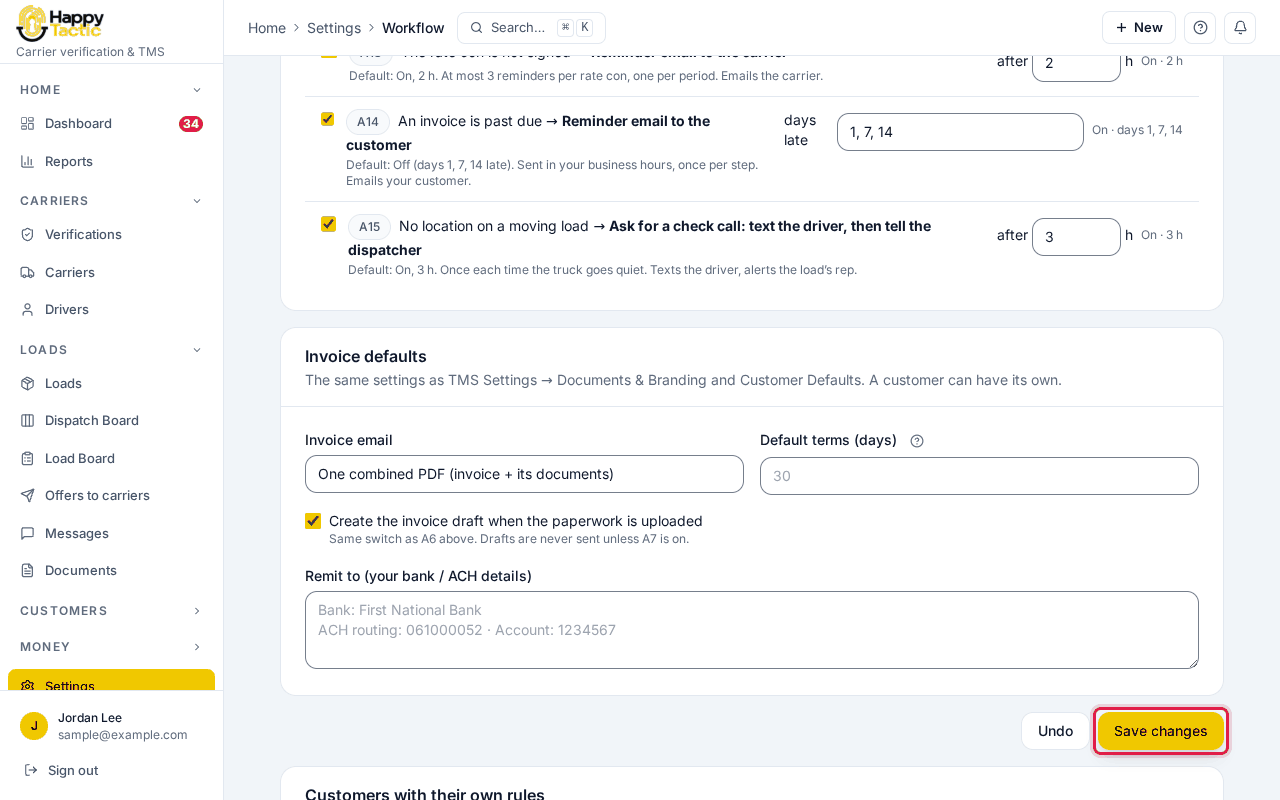
We did not save here so our sample company kept its settings. You should see: Your choices apply to new work only.
If something goes wrong
- Save changes is faded.
- You have not changed anything yet.
- It did not touch my old loads.
- That is on purpose. Automatic steps skip every imported load and anything that happened before you first turned them on.
- One customer needs different rules.
- Open that customer and use their own invoice rules. The Workflow page lists the customers that already have their own.
- The rows are labelled A1, A2 …
- They are just numbers for the helpers. The words next to each number say what it does.
Still stuck? Open Help & Support in the left menu of the app and send us a message.
What next
These guides usually come next: