Invite your team
Add a teammate to your company and choose what they can see and do.
Steps
Each picture has a red box around what to click. Words in bold are the names you will see on the screen.
Step 1: Open Settings and Team
Click Settings in the left menu, then the Team tab. The top box shows how many seats you have used.
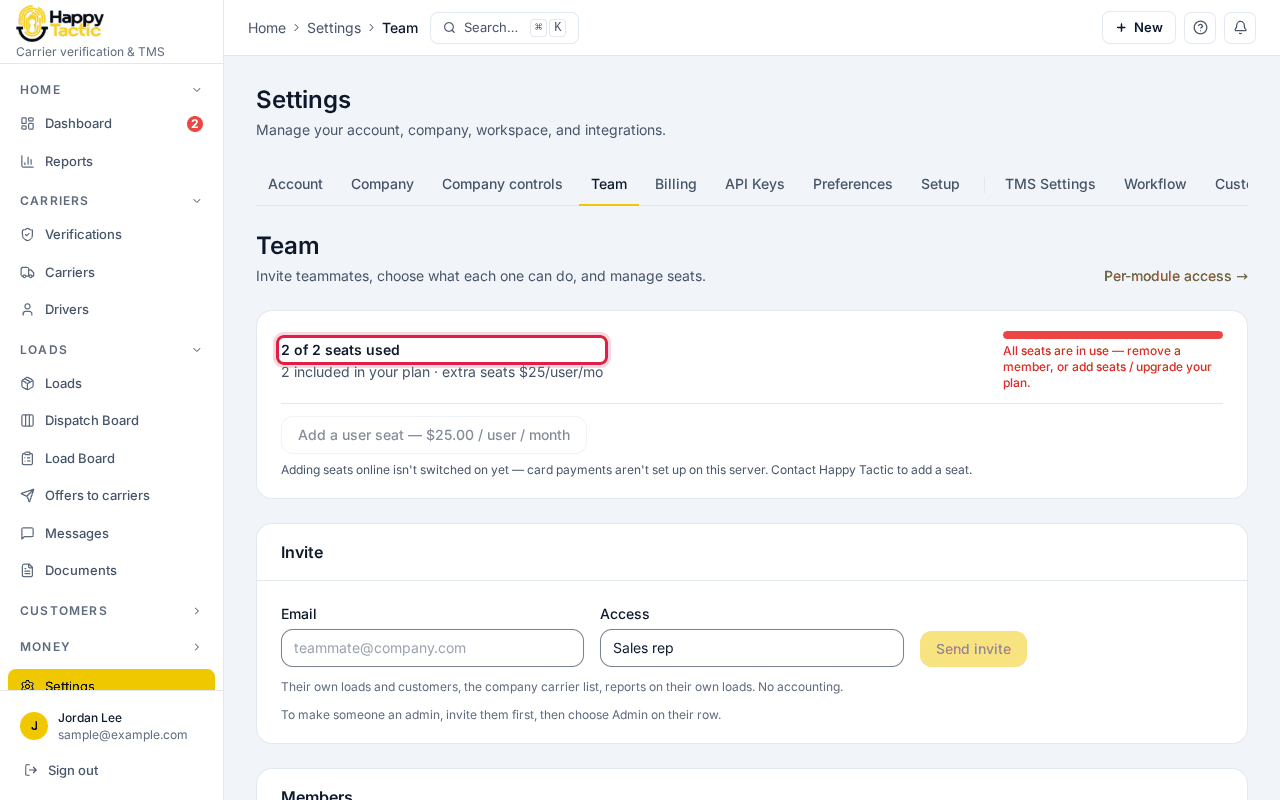
You should see: Below it are the Invite form and the list of Members.
Step 2: Type your teammate’s email
In the Invite box, type your teammate’s work email under Email.
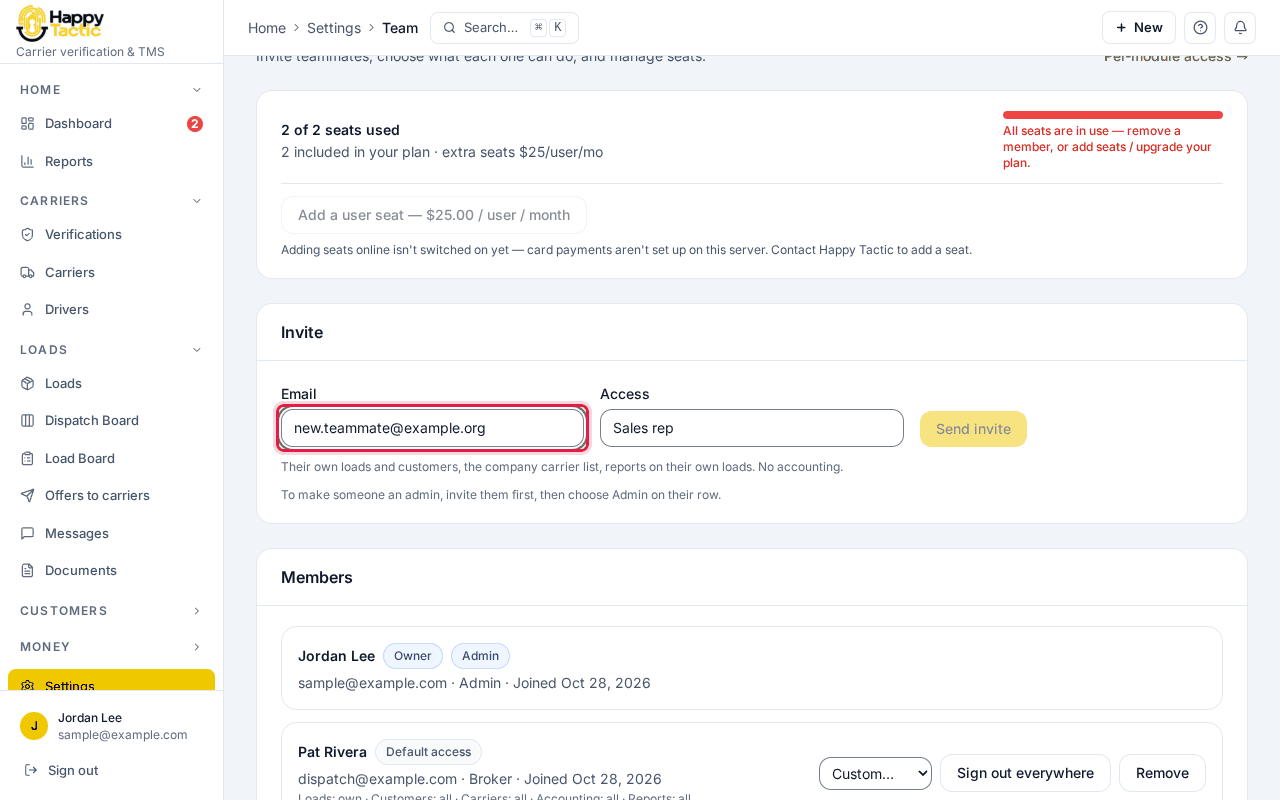
The email address is a sample. Step 3: Choose what they can do
Pick Access: Manager, Sales rep, Dispatcher, Accounting or Custom…. The line under the box says exactly what that person will see and do.
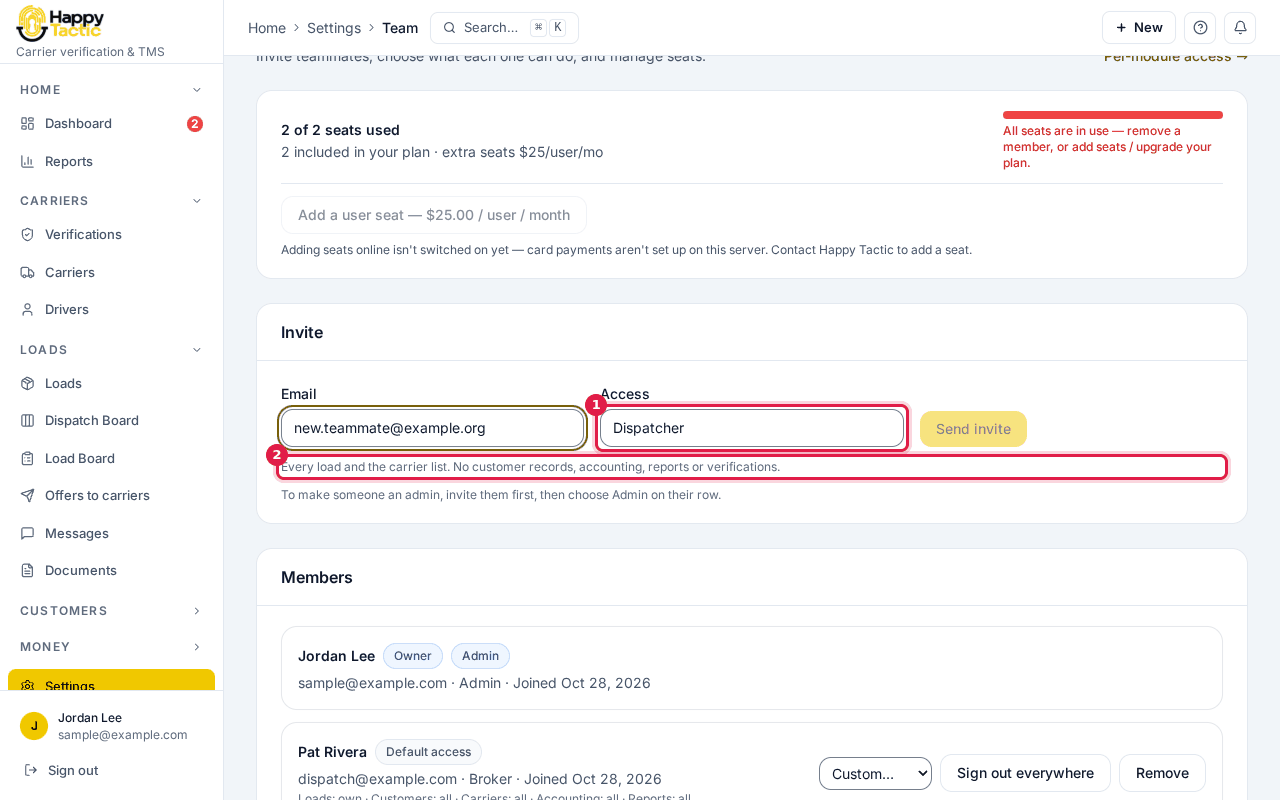
You should see: To make someone an admin, invite them first, then choose Admin on their row in the Members list.
Step 4: Send the invite
Click Send invite.
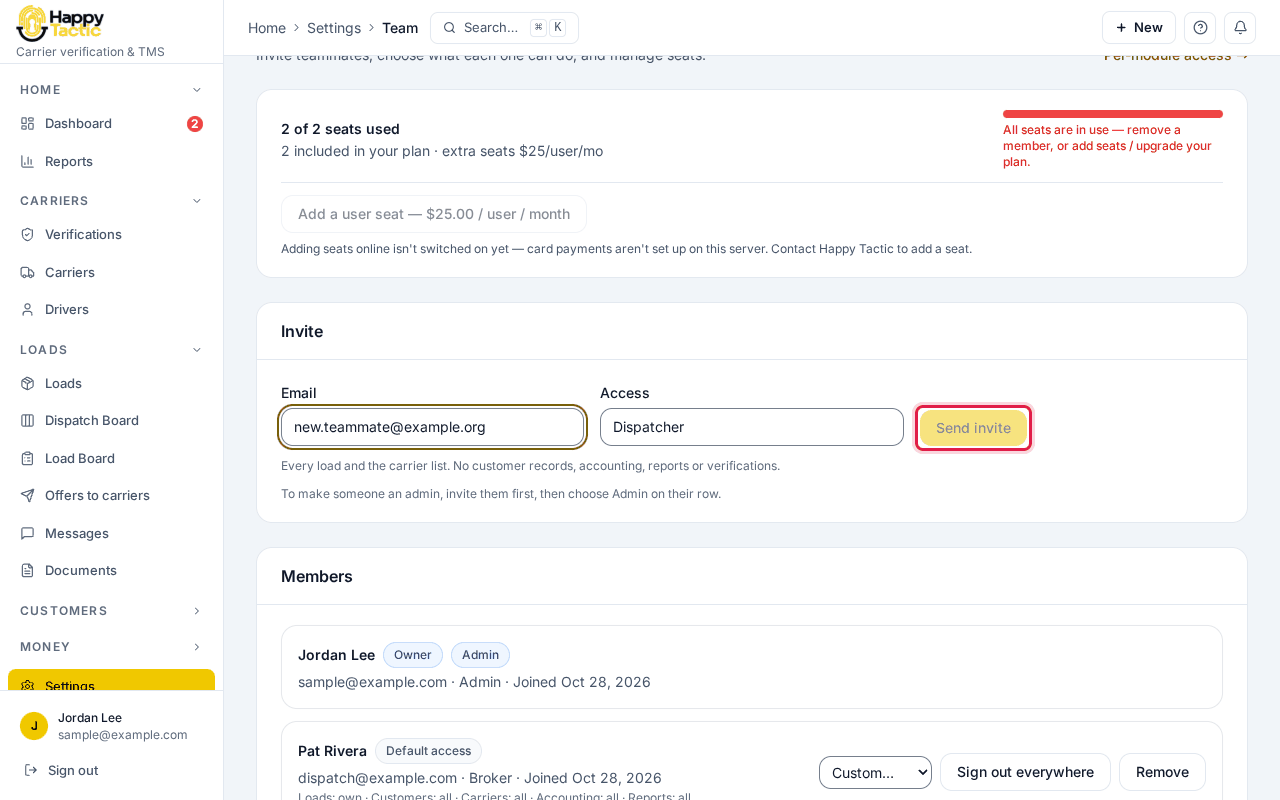
The button is faded here because our sample company had no free seat, so we could not send a real invite. When you have a free seat it is solid yellow. You should see: A green message says “Invite sent” and that they have 7 days to set their password. They appear in Members with an “Invite pending” label until they join.
If something goes wrong
- Send invite is faded.
- Type a full email address and pick an access. If the box says “All seats are in use”, remove someone, or contact Happy Tactic to add a seat.
- My teammate did not get the email.
- Check their spam folder. On the Members list, use the resend option on their row. Invites last 7 days.
- I want to change what someone can do.
- On their row in Members, change the access list. It takes effect right away.
Still stuck? Open Help & Support in the left menu of the app and send us a message.
What next
These guides usually come next: